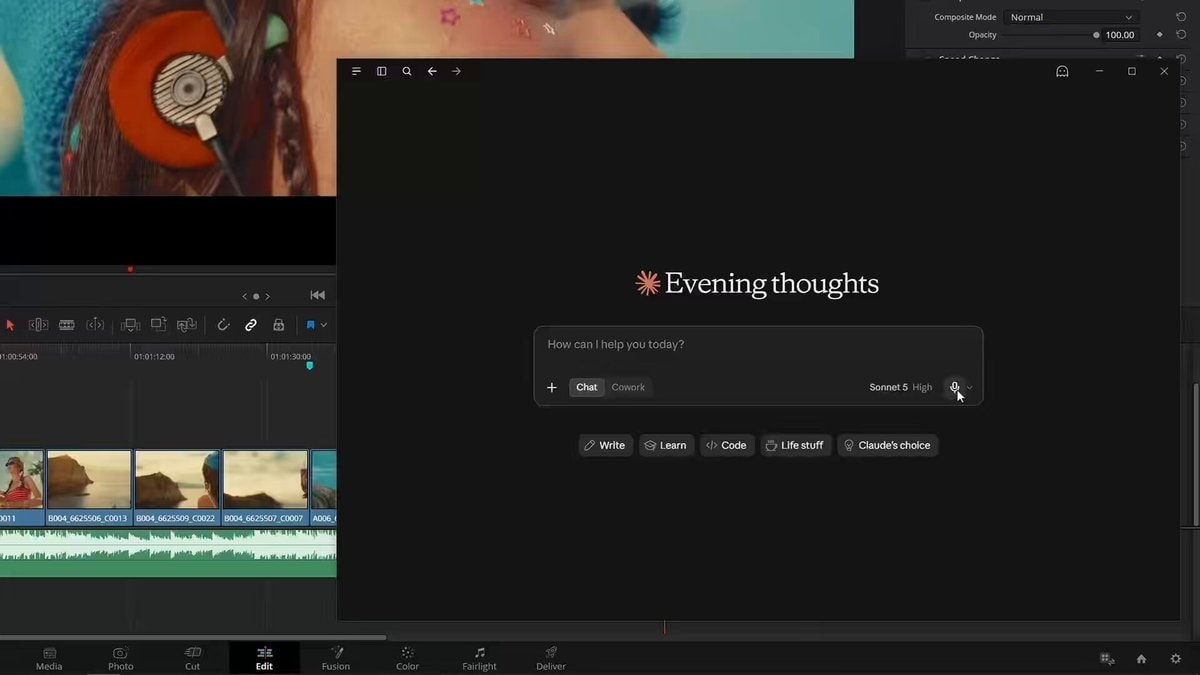
DaVinci Resolve Studio 21.1 AI integration
DaVinci Resolve Studio 21.1 just went all-in on AI integration. You can now link Claude, Claude Code, or ChatGPT Codecs through MCP to handle editing and color grading automatically. The setup is straightforward: go to File, pick Setup AI Assistants, and wait for the green light. Once connected, your chat interface becomes a command center for analyzing projects, organizing media, tweaking settings, or batch rendering timelines using plain English. Try asking it to cut long footage into highlight reels, delete clips under a second, or render H.265 videos for quick review. This shift lets you dump the boring repetitive work and save your energy for actual creative choices. Some are already calling this the real AI filmmaking revolution.
스크립트 (en)
DaVinci Resolve Studio 21.1 supports integration with AI assistants, such as Claude, Claude Code, and ChatGPT Codecs. You can ask your AI assistant to analyze your project, organize your media, change project settings, batch render timelines, and countless other operations using everyday conversational language. To set up, go to File, Setup AI Assistants, and wait for the confirmation. Once connected, you will be able to perform actions in DaVinci Resolve through your AI Assistant's chat interface. For example, you can ask Claude to take a long video in the media pool and create a 3-minute highlight edit on the timeline. Then, you can ask Claude to remove edits that are shorter than a second and render an H.265 video for review. In DaVinci Resolve 21.1, you can use your AI Assistant to perform tedious and often repetitive tasks and render operations, leaving you free to focus on creative decisions.